Tuesday, August 15, 2017

Identify differences between Dynamics 365 (CRM) instances

Goal

You want to identify differences (entities, fields, picklists, etc.) between two CRM Online instances (e.g., production and a sandbox).

Possible Solution

You might be able to follow the approach detailed on Develop 1's blog, but if your default solution zip file never appears or you get an error (as I do quite often these days with the default solution), then here's another approach.

Steps

Note that these steps are targeted toward CRM developers. That is, until someone writes an XrmToolBox plugin that does the same thing or in a better way.
  1. Export entities as solution zip files: The Dynamics 365/CRM SDK contains an article named "Work with Solutions" that provides source code samples for creating and exporting solutions. The first step in the diff process is to write an app that creates a temporary solution in the instance, adds an entity component to it, exports the solution (as a zip file) and then moves to the next entity, and so on. This will result in all entity components (and their dependencies) in solution zip files.
  2. Extract the solutions to sub-components: Use the SolutionPackager tool that's included in the SDK to extract each entity solution zip file to individual sub-component files. You can use Excel to build a batch file that will run the SolutionPackager utility for each solution zip file, or better yet, run the SolutionPackager from within your app.
  3. Follow the steps above for a second CRM instance: Now that you have all entity components extracted on disk, you can run steps 1 and 2 again for a different CRM instance. Or run your app twice at the same time, one pointed to production and one to the sandbox.
  4. Use a file diff/comparison tool to identify differences: You can now use a diff tool such as Beyond Compare to diff the two sets of folders. This will reveal metadata differences in both instances.

Notes

  • By exporting entities along with their required components (that's an option when adding components to a solution programmatically), you'll end up extracting most components that relate to entities. However, you might also want to export other component types such as all processes (not only those that have entity dependencies), global picklists, web resources, etc.
  • It might take an hour or two for the app you create to export all entities as solutions.
  • You can add the extracted solution files into a source control system to keep track of changes over time.
  • You can index and search through the solution zip files or extracted files using a grep or indexing tool (e.g., dtSearch) to track down a component that might be giving you trouble while importing or exporting larger solutions.


Tuesday, June 20, 2017

Dynamics CRM workflow editor bug might be related to editable grids

The problem: While creating a workflow process in Dynamics 365 (CRM Online), the "Form Assistant" drop-down boxes (i.e., where you can select the "Operator" or dynamic values) were empty/blank.


What we tried: We tried these steps to troubleshoot the issue: 1) click into a variety of fields to see if the problem is related to specific types of fields (no, the options are blank for all field types), 2) clear browser cache, 3) try IE, Chrome and Edge, 4) determine whether the problem is happening for all entities.

Some clues: Regarding #4 above, the problem with the blank options when editing a workflow step occurred for some entity types but not all. So what was common between the entity forms where this bug occurred?

The fix: It turns out, at least for the CRM organization we're working with, that if there's an editable grid on the form, then the Form Assistant controls do not get populated. We removed the editable grid, saved, published and then tried editing the workflow step again. That resolve it: The expected operators, field choices, etc. are appearing in the workflow step edit page again.

This might be a coincidence, but this work-around is worth trying if you run into the same problem.

Monday, June 5, 2017

Prototype and fail early with cloud-based development

In these days of rapid and incremental software product releases, where development companies add features for our benefit but often before thoroughly testing them, it's crucial that we all approach projects in a prototyping mindset and find the bugs early rather than assuming that all released features are going to work as we progress through an application.

It used to be that when you bought a license to, for example, Microsoft SQL Server, you were confident that any problems you encountered were likely due to your own code.

These days, it's difficult to know whether a bug is due to something you're doing wrong or whether it's a "known issue" to the software manufacturer due to releasing functionality too quickly.

My latest example of this relates to Microsoft PowerApps. I created and finalized several screens and moved on to the last part of the project and that was to simply list records from a Common Data Service (CDS) entity that relate to a record selected on a previous screen. This is fully supported and Microsoft provides examples on how to do this.

Then I ran into this "known issue": "For some connectors, the connection to the data source is lost if you modify the Items property."

In my case, I selected the connection to the CDS entity for a data table and went to apply a filter and the data source disappeared. I thought that I was doing something wrong so I re-read the documentation on using filters and the best I could tell I was using the functionality the way it was designed.

Then I searched online some more and eventually ran into the issue.

I'll likely find a work-around to this bug, probably by storing the related data onto the main CDS entity itself.  But this is another reminder to myself, and hopefully to you as well, to approach application development with cloud-based platforms in a way where you prototype as much of the functionality first before spending a lot of time polishing various forms/screens so that you can switch gears on your design when you run into an issue like the one I described.

Saturday, June 3, 2017

Checking for existence of record in Azure Logic Apps

I recently had the need to store data into an Microsoft Common Data Service (CDS) database, and using a Logic App seemed to fit the need in this case.

Project requirements:

- Run the integration (data copy) once per day
- Query Dynamics 365 (CRM) for Project records
- Insert or update into the Common Data Service database, to the Project entity

I'm probably missing something obvious, but that last step was more difficult to figure out than I thought. I created a "For each" to loop through the CRM records and then wanted to query the CDS entity to determine whether or not the record already exists. If the record exists, update it, if it doesn't exist, create it.

To query the CDS entity to determine whether the source CRM record exists, I used the CDS "Retrieve record" action. When running the Logic App, though, when it encountered the condition where a CDS record didn't exist the Logic App stopped processing and set the instance as "Failed".  Not finding a record really shouldn't be considered a failed job, but that's the way Logic Apps handles this condition.

The way Scribe Online handles this type of query is to set a property (e.g., RecordsMatched) to indicate whether or not the record exists. You can use the property's value in IF..THEN formulas to change the runtime processing path.

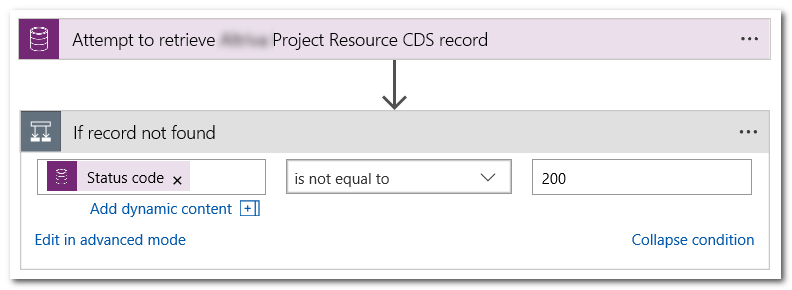
In Logic Apps, I couldn't find a simple way to set a condition based on whether or not it found the CDS record. The solution I came up with was to check the HTTP status of the query to the CDS. A response of 200 means that the record exists and a 404 means the record does not exist.

For the "IF" statement in the Logic App (after querying for the CDS record), I switched to "Code view" in the Logic Apps Designer and set the expression to the following:

"expression": "@not(equals(outputs('Attempt_to_retrieve_Project_CDS_record')['statusCode'], 200))",

Here's how that change looks in the Designer view:


From there, I added an action to insert the CDS record if it doesn't exist or update it if it does exist.

This solution was confusing because I couldn't find any examples or documentation from Microsoft on how to deal with this common scenario. I found an article on dealing with "exceptions" using the runAfter setting for an action, but checking for a record and not finding it really isn't an exception, it's a simple operation that should, in my opinion, be easier to handle in Logic Apps. Maybe it is and I just missed it. If so, please let me know.

Monday, April 3, 2017

Using Azure from .NET Console App for Exception Notifications

Microsoft Azure helps out again...

I recently worked on a project where a .NET console app needed to run consistently throughout a weekend, without interruption. If the app threw an exception from which it could not recover, I wanted to be notified right away so I could login and resolve the issue.

The server where I was asked to run the application did not have the ability to send email, so the solution I came up with was to send a message from the app to an Azure Service Bus queue and then use an Azure Logic App to read from the queue and send an email to my account.

Below is a C# method that will send a message to an Azure Service Bus queue:

public static void PostExceptionToAzureSBQueue(Exception ex)
{
  try
  {
    var connectionString = Settings1.Default.ExceptionServiceBusQueueConnectionString;
    var queueName = Settings1.Default.ExceptionServiceBusQueueName;

    var client = QueueClient.CreateFromConnectionString(connectionString, queueName);
    string msgText = "Data migration exception occurred.\n\n";
    var message = new BrokeredMessage(new MemoryStream(Encoding.UTF8.GetBytes(msgText + ex.ToString())), true);
    client.Send(message);
  }
  catch (Exception ex2)
  {
    log.WarnFormat("Error occurred attempting to send Azure Service Bus Queue message: Exception={0}", ex2.Message);
  }
}
The Azure Logic app only needs two steps: 1) Get queue message and 2) Send email via Office 365 Outlook. In the second step, simply place the "Content" data from the queue message into the Body field for the email to send. You can set the email priority to High and deliver the email to multiple recipients if desired.

This is another example of where Azure can help with general .NET development... even "old school" .NET console apps.

Tuesday, February 28, 2017

More progress on my Dynamics 365 (CRM) Metadata DIFF tool

I worked on one of my rainy day projects last weekend... a diff tool for Dynamics 365 CRM orgs.

The goal of the solution is to be able to view the major differences between the same CRM org over time or two different orgs (online or on-prem).

The components include two Azure WebJobs and a SQL Server database. One WebJob queries the CRM orgs for metadata (see list below) and the other is responsible for the diff operations and reporting the differences.

So far, the tool compares the following metadata and entity-based data:
  • Entity
  • Attribute
  • OptionSet (Global and entity-based)
  • One-to-many relationships
  • Many-to-many relationships
  • Business Unit
  • Connection Role
  • Field Permission
  • Mailbox
  • Organization
  • Plugin Assembly
  • Plugin Type
  • Process
  • Process Stage
  • Publisher
  • Queue
  • Role
  • Saved Query
  • Saved Query Visualization
  • Sdk Message Processing Step
  • Sdk Message Processing Step Image
  • Site Map
  • Solution
  • Solution Component
  • System Form
  • System User
  • System User Roles
  • Team
  • Template
  • User Form
  • User Query
  • User Query Visualization
  • User Settings
  • Web Resource
Next up for the tool is to make the deployment faster and easier. Currently, it's necessary to manually run T-SQL DDL scripts to create the database tables and stored procedures. The plan is to make that a single click using a simple ASP.NET app.

If your organization has the need for an automated CRM metadata tracking or diff process, please get in touch and I'll share some of my experiences in building the tool or, through Altriva, we can talk about sharing the code with you.

Monday, February 13, 2017

Twitter noise-reduction solution in Microsoft Azure is working well

I've been running my Azure-based Twitter "noise-reduction" solution for a few days now. Below are some observations.

First, a recap of what the solution is doing...

The solution runs in Azure to help identify new and unique tweets, eliminating retweets, duplicates and unwanted "noise" tweets by keyword. It sends the tweets that pass the filters to an email folder. I then review the tweets (about 75/day related to Dynamics 365 CRM and Azure) and drag them to another folder. An Azure Logic App reads from that folder and posts the tweets to this blog. So, it's mostly automated, and becomes better over time as it catches duplicate tweets.

This screenshot (Azure Portal) shows the solution services. The solution includes three Azure Logic Apps, a Function App with one function and Azure Storage queues and tables.


Why do this? Mostly because I want to continue to learn how to use Azure Logic Apps, Azure Functions, Microsoft Flow, etc. Second, I have $150 in Azure credits and this seemed like a good use of some of them. And lastly, part of my job is to keep on top of what's happening with Dynamics 365, so creating an intelligent Twitter spy tool seemed like a reasonable way to meet that goal as well.


Lessons learned so far:

  • Cost: It costs about $0.75/day to run this solution in Azure. Besides the Azure services shown in the screenshot above, I have two Microsoft Flow workflows querying Twitter for the following hashtags.
    • #msdyncrm OR #dynamics365 OR #msdyn365 OR #dynamicscrm OR #dyn365 OR xrmtoolbox 
    • #azurefunctions OR #logicapps OR #webjobs OR #powerapps OR #microsoftflow OR #azuresql OR #sqlazure OR @logicappsio
So, it's a relatively inexpensive way to save me a lot of time reading about new CRM and Azure happenings.

  • Part of the solution is for a Logic App to auto-send a tweet about the new "Favorite Tweets" blog post. After a few hours of that tweet, each page is getting about 50 unique visitors, so the automated solution is leading to a respectable number of page views. That's not my goal, but if I ran a business then this solution could be used to provide timely and relevant content to site visitors.

  • It's reliable. The Azure Logic Apps, Functions, etc. that I created for the solution have run on-time and without fail each day. I didn't really expect them to fail, it was just reassuring to see all green checkmarks in the runtime history.

I'm not sure what my next rainy day side project will be with Azure but I'm sure I'll come up with something soon.